
 Residential Proxy Powerful Launch! 70M+ Compliant Source IPs, Empower Your Web Scraping Projects at $0.8/GBBuy Now



 Data for AI




















 Back
Back
MACOS proxy cache settings
1. Summary
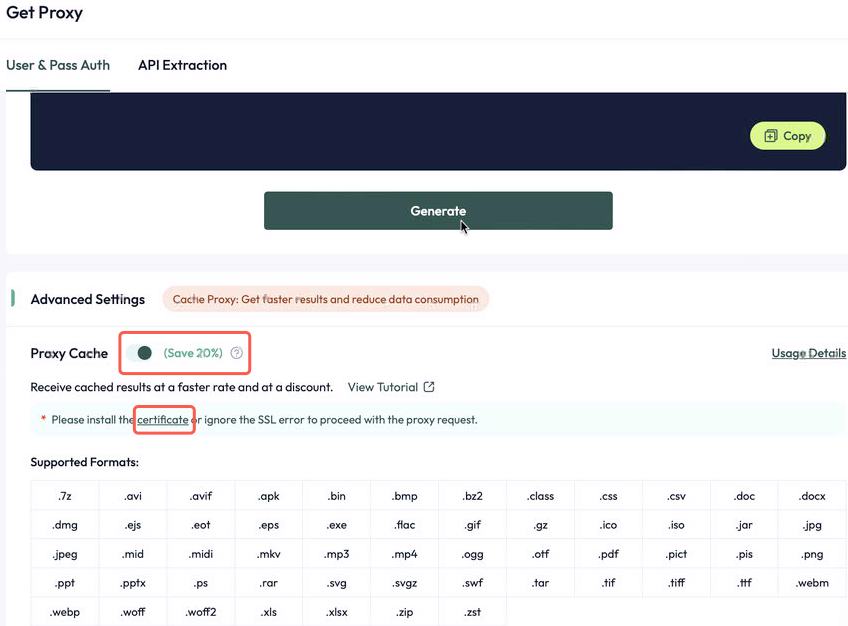
The cache proxy function can reduce unnecessary traffic consumption of the target website, get results faster and reduce data consumption.
2. Operation steps
2.1. Visit the official website (https://aproxy.com/aproxy.crt/) to download the proxy certificate.
2.2.Open Keychain Access, select Keychain: System in the upper left corner, and select Certificates in the category.
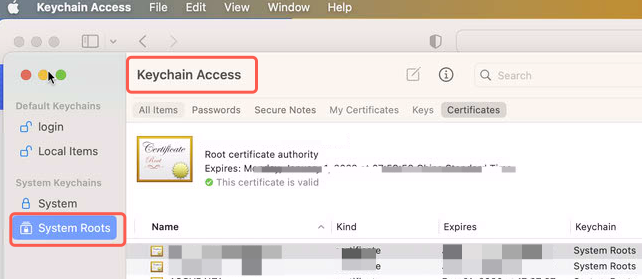
2.3.Drag the locally stored certificate into the keychain or click File in the upper left corner > Import Project > Select Certificate File > Open.

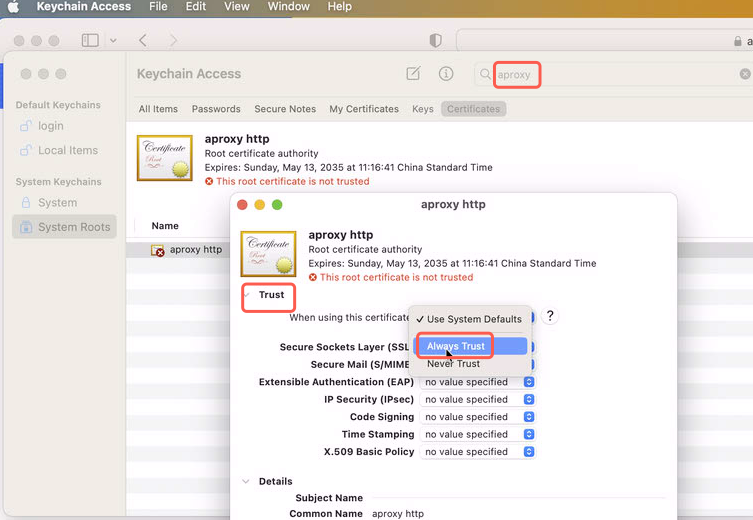
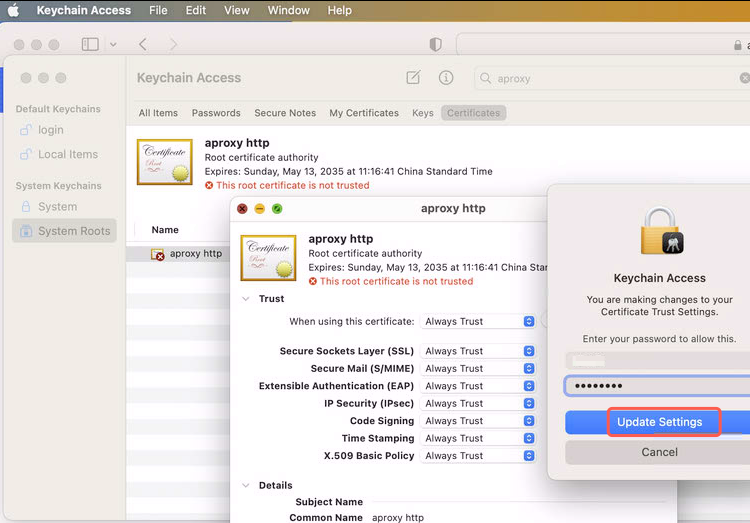
2.4.Find the imported certificate, double-click it, open a new window and select Trust Certificate. In the When using this certificate drop-down menu, select Always Trust. Close the window and you will be prompted to enter the administrator password to confirm the change.
2.5.Open Safari or Chrome and visit a website that uses the certificate (such as a self-signed certificate for a local HTTPS service). The message "Connection is not secure" or "Certificate is invalid" will no longer appear, indicating that the certificate is effective.

 Updated 9 month ago
 Setting up proxy cache in Linux
 ISO/IEC 27001:2017 Certified Product
 Start Your Efficient Proxying and Scraping Journey.
CONTACT US
[email protected]CONTACT US
[email protected]
 Due to policy reasons,Proxy must be used in non-Mainland China Internet environment!
Smart Innovation Technology LimitedUNIT1021, BEVERLEY COMMERCIAL CENTRE, 87-105 CHATHAM ROAD SOUTH, TSIM SHA TSUI, KOWLOON
This website uses cookies to improve the user experience. To learn more about our cookie policy or withdraw from it, please check our Privacy Policy and Cookie Policy.

Chat

Email
Contact us with email
Tips:
Provide your account number or email.
Provide Screenshots or vedios, and simply describe the problem.
We’ll reply to your question within 24h.
Send Email
