
 Peluncuran Kuat Proksi Residensial!70M+ IP sumber yang patuh, tingkatkan proyek web scraping Anda dengan $0.8/GBBeli Sekarang



 Data untuk AI













 Kembali
AdsPower Browser Proxy Configuration Guide
Before configuring the proxy, please purchase a proxy [Residential Proxy Purchase Tutorial] and extract the IP address [IP Address Extraction Tutorial].
Here is an example of using the residential proxy account and password extracted IP.
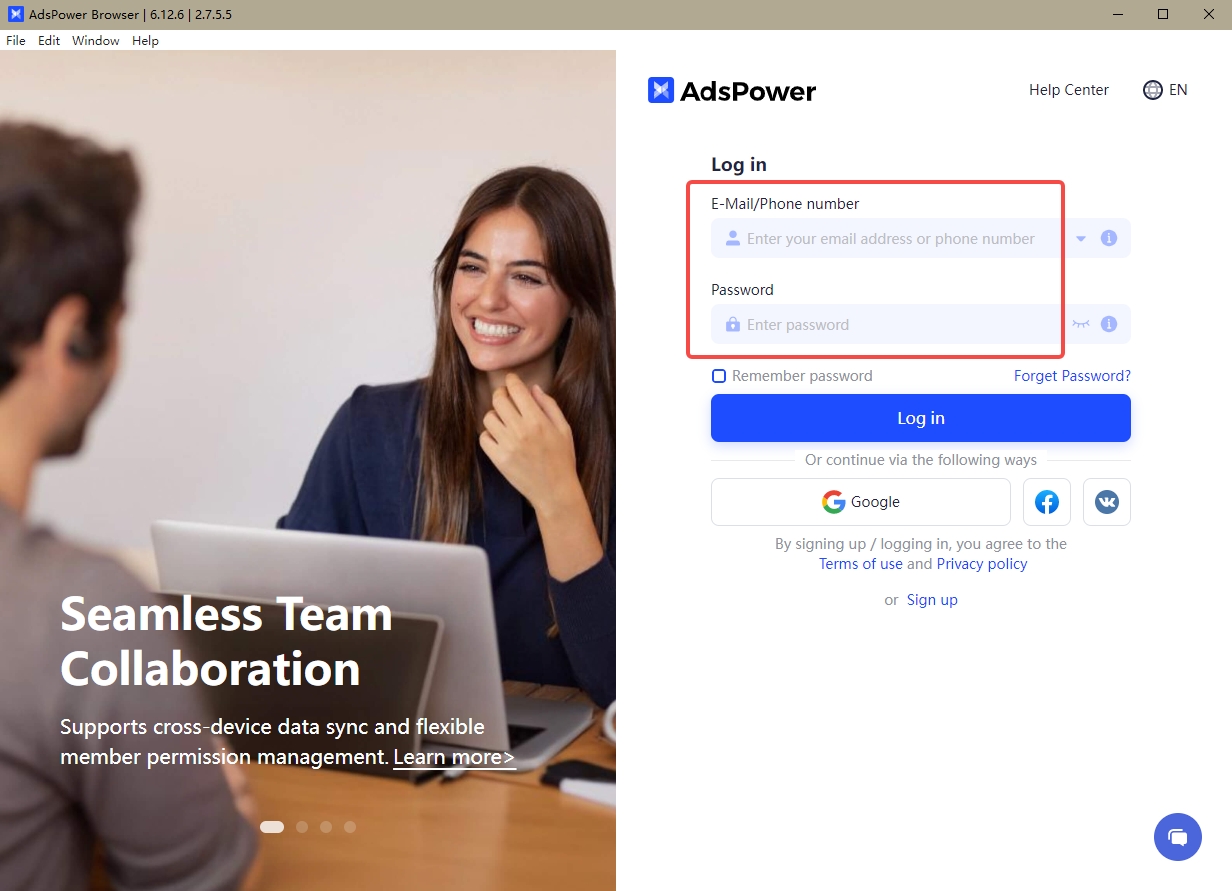
1. Click here to download and install AdsPower Browser. Open the AdsPower browser website, register, and log in.
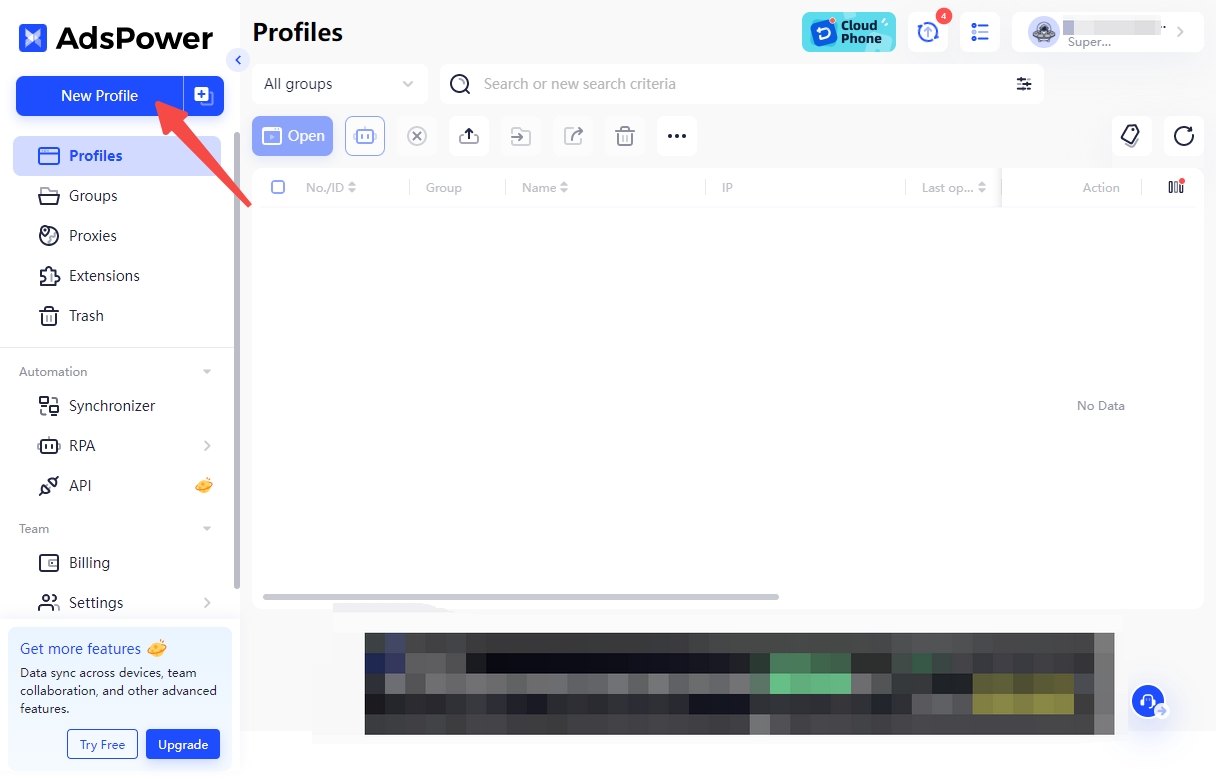
2. After logging in, click "New Browser" in the top-left corner.
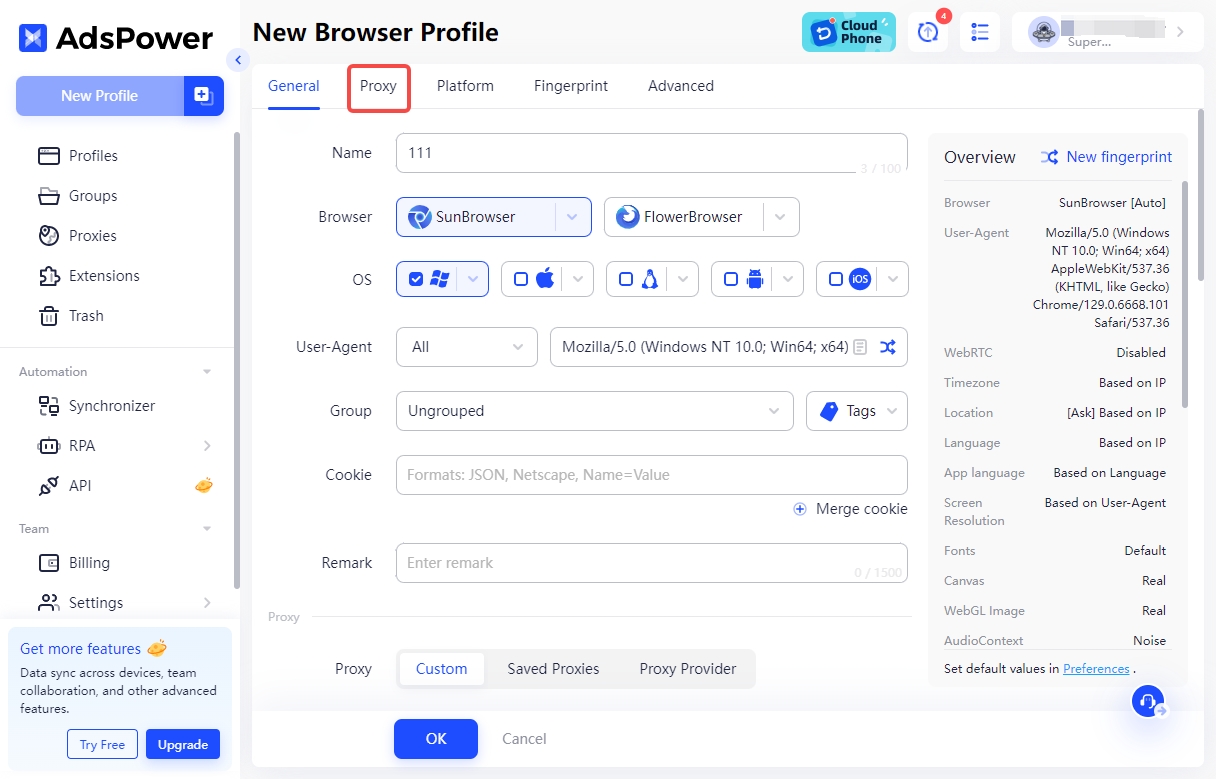
3. After filling in the environment name, click "Proxy Information."
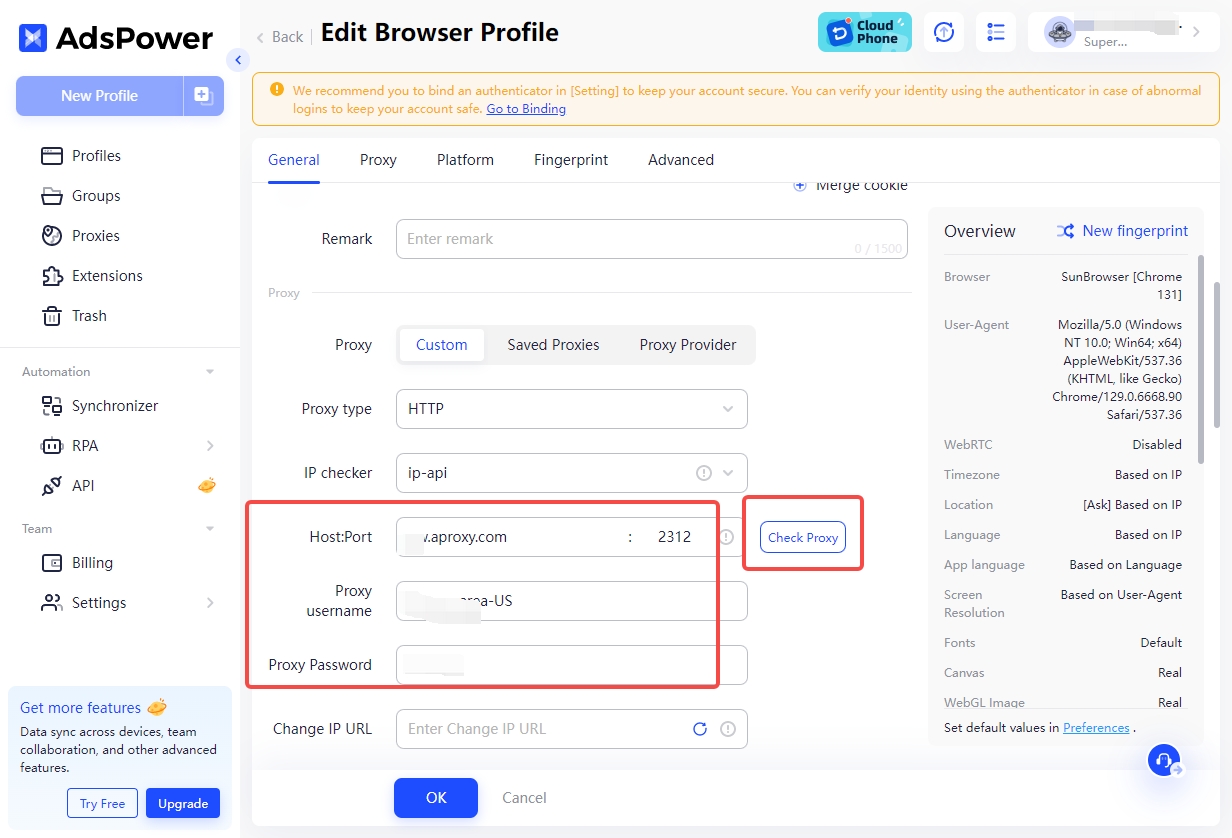
4. In the "Proxy Type" section, select HTTP, and in the "IP Query Channel" section, choose ip-api. Paste the generated proxy server, port number, username, and password into the proxy information. Then click "Proxy Test."
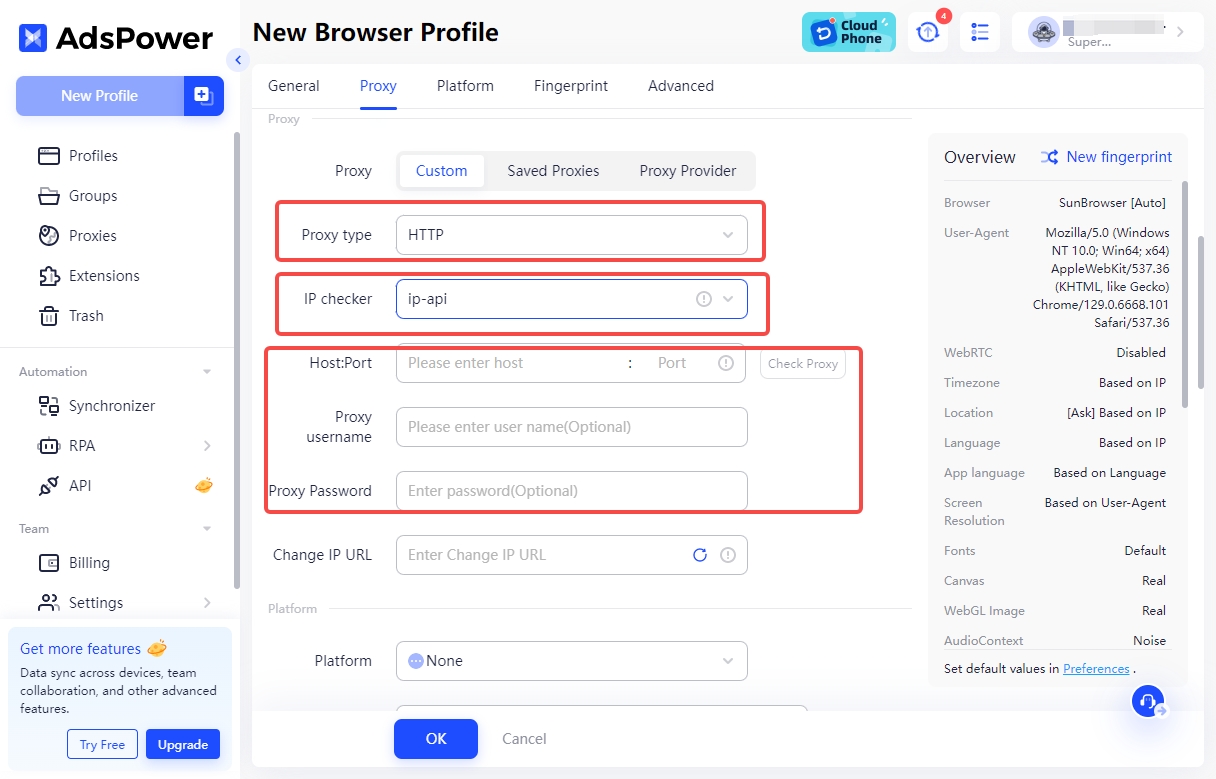
5. Paste the generated proxy server, port number, username, and password into the proxy information. Then click "Proxy Test" again.
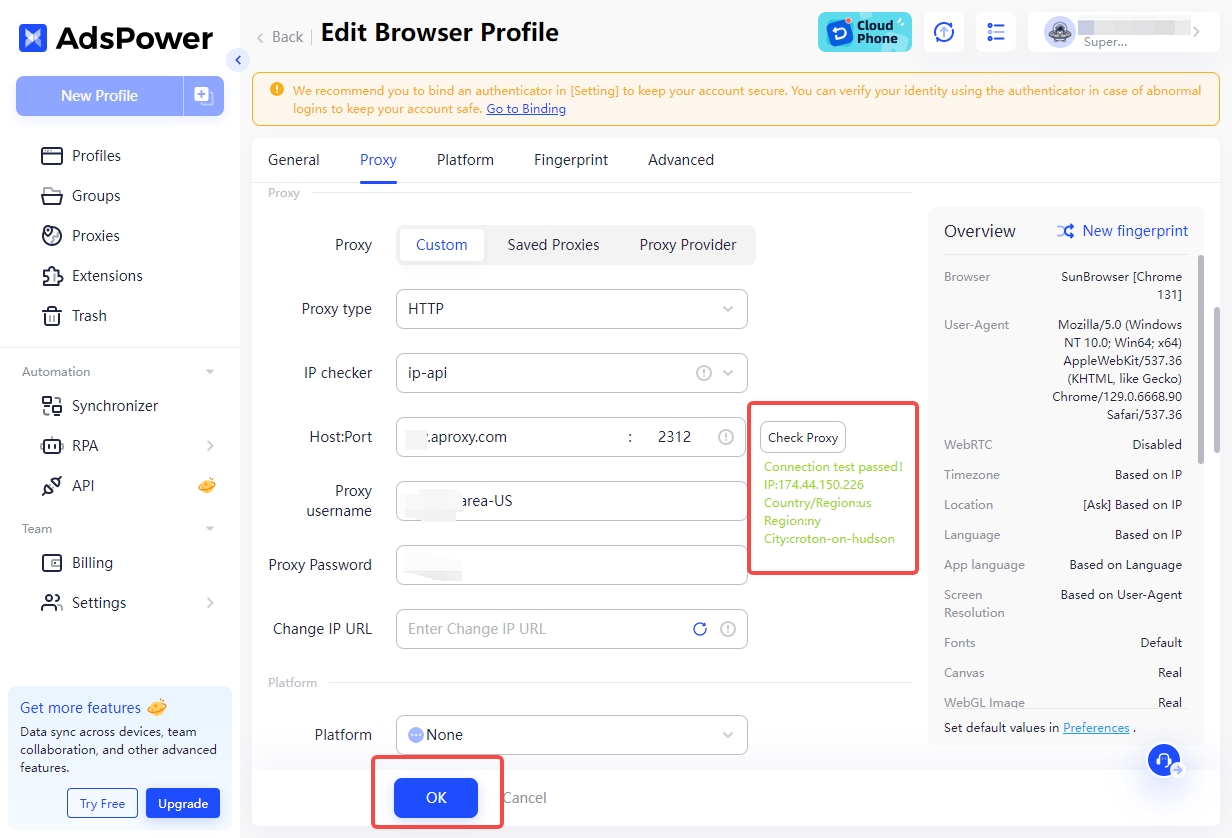
6. After testing, the right side will show the IP address provided by the proxy server. If successful, click "OK," and you will be redirected to the homepage.
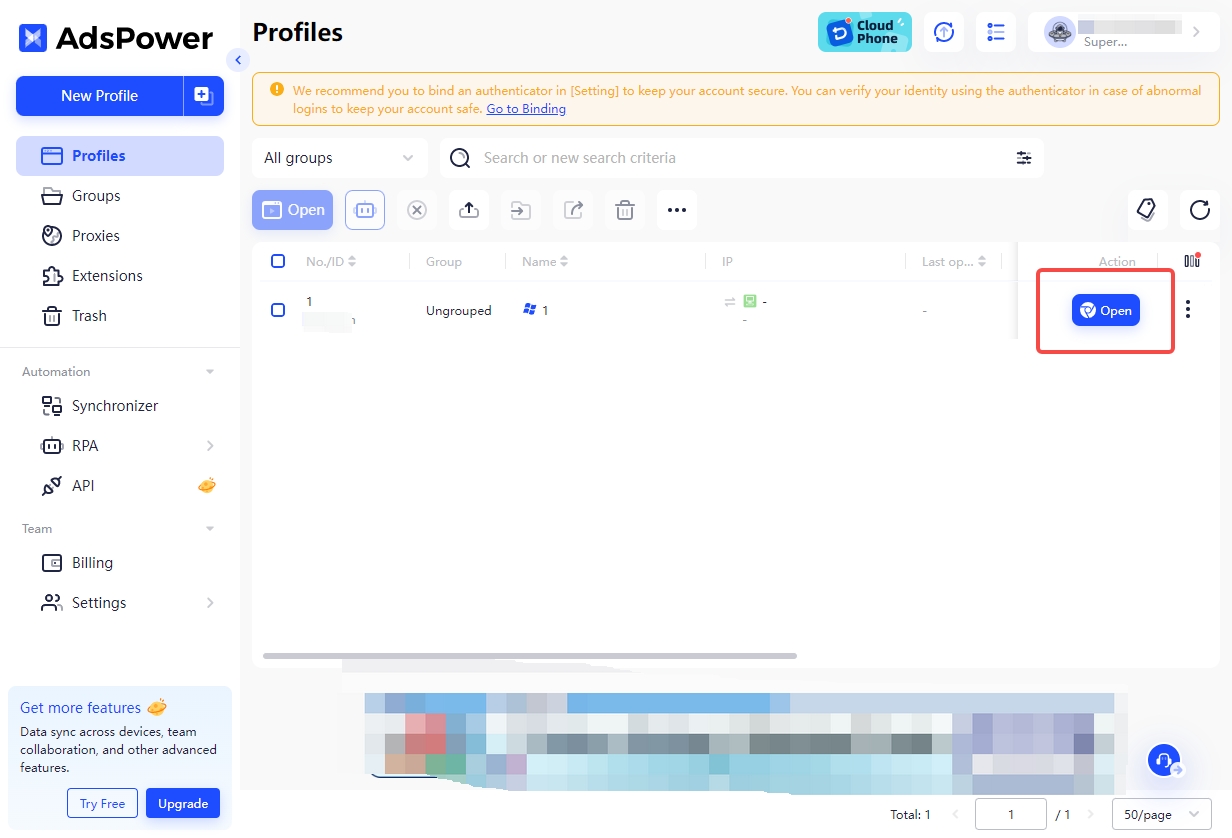
7. On the homepage, click the window you just created and click "Open."
8. The proxy IP address will be displayed. Confirm if the IP is correct. Then visit other websites to test the connection and ensure it works correctly. If everything checks out, your setup is complete.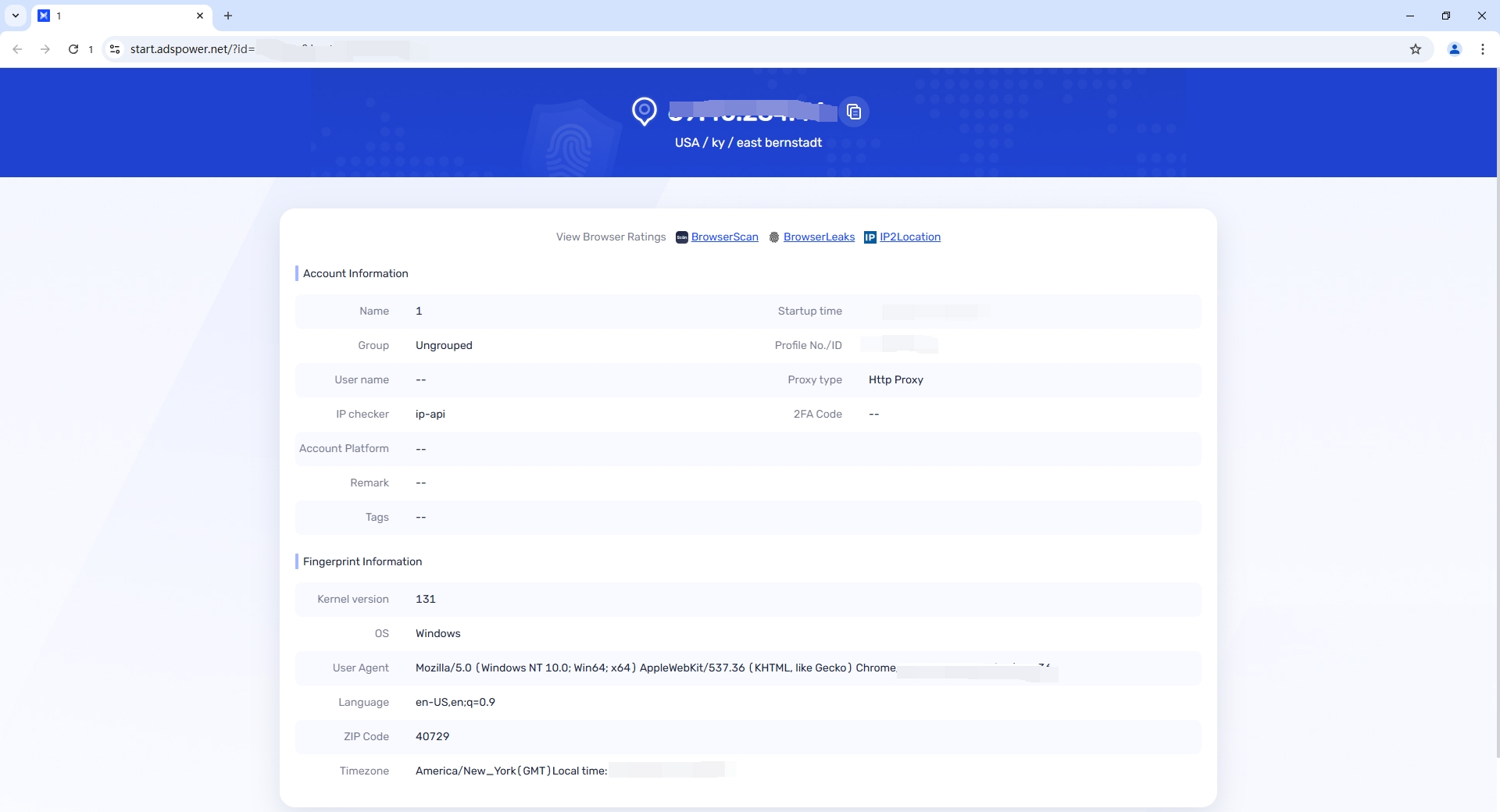
 Updated 1 year ago
 Bit Browser setting

 Produk Bersertifikat ISO/IEC 27001:2017


