
 Ra mắt mạnh mẽ Proxy Cư Trú!70M+ địa chỉ IP nguồn tuân thủ, nâng cao dự án web scraping của bạn với $0.8/GBMua ngay



 Dữ liệu cho AI













 Mặt sau
Register/Login/Retrieve Password
This article provides a detailed introduction to the steps of registering, retrieving passwords, and changing passwords on the Aproxy official website, helping users quickly complete relevant operations.
Registration and Login Tutorial
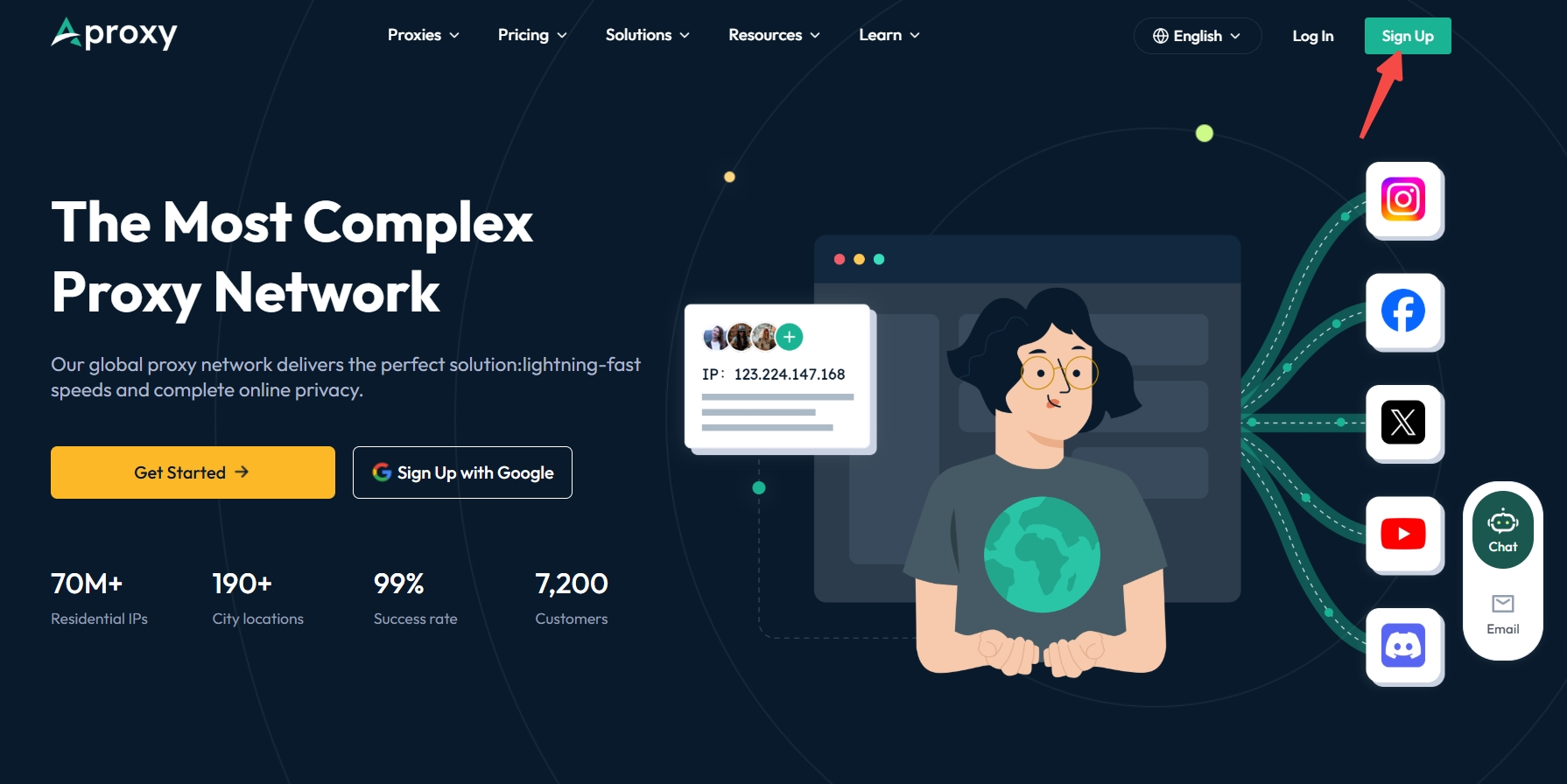
1. First, click to enter the Aproxy official website. Click on the upper right corner "Sign Up" or click here to register.
2. There are two ways to create an account:
The first way:Sign Up with a Google account
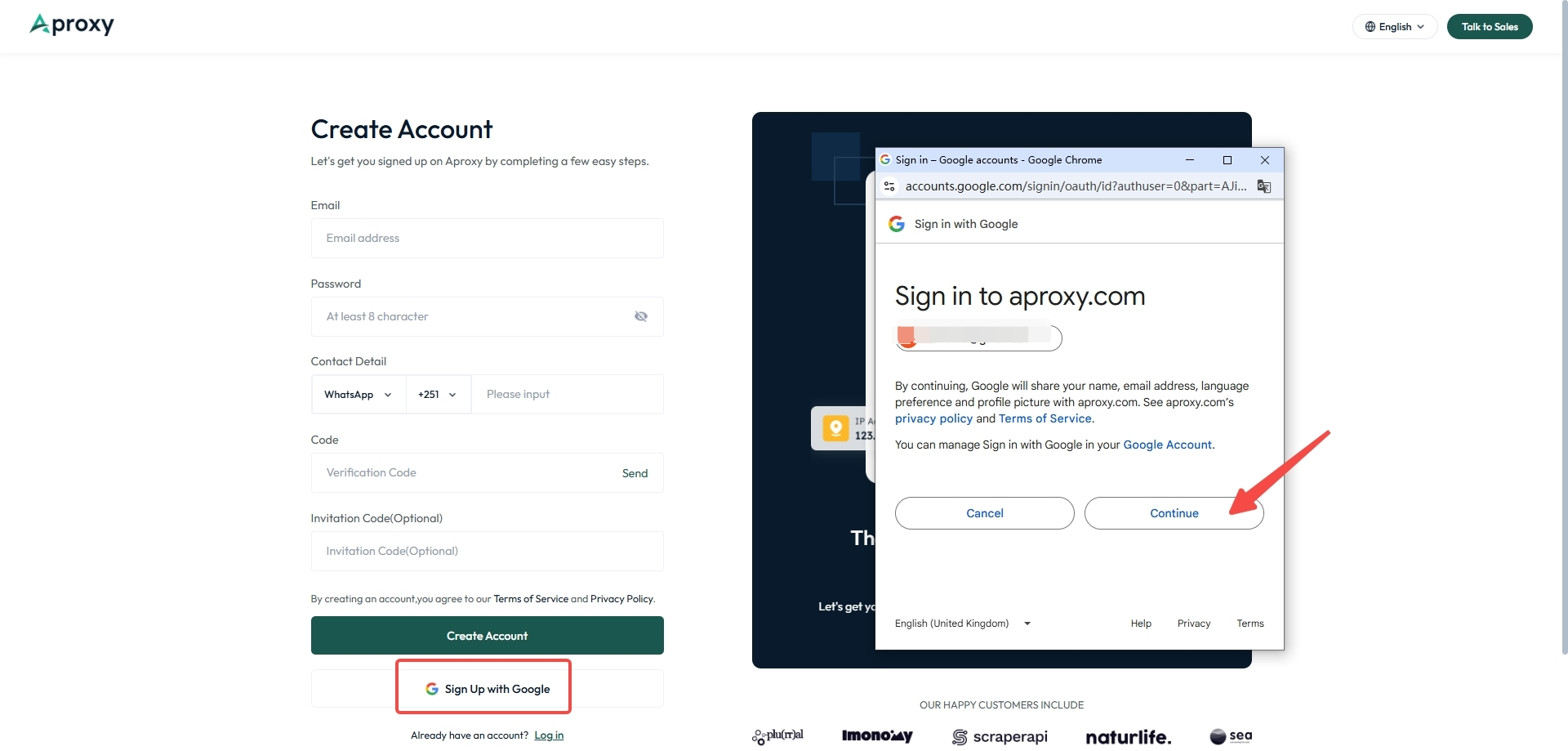
Click "Sign Up with Google", select the Google account you want to use for registration in the pop - up window, and then click "Continue".
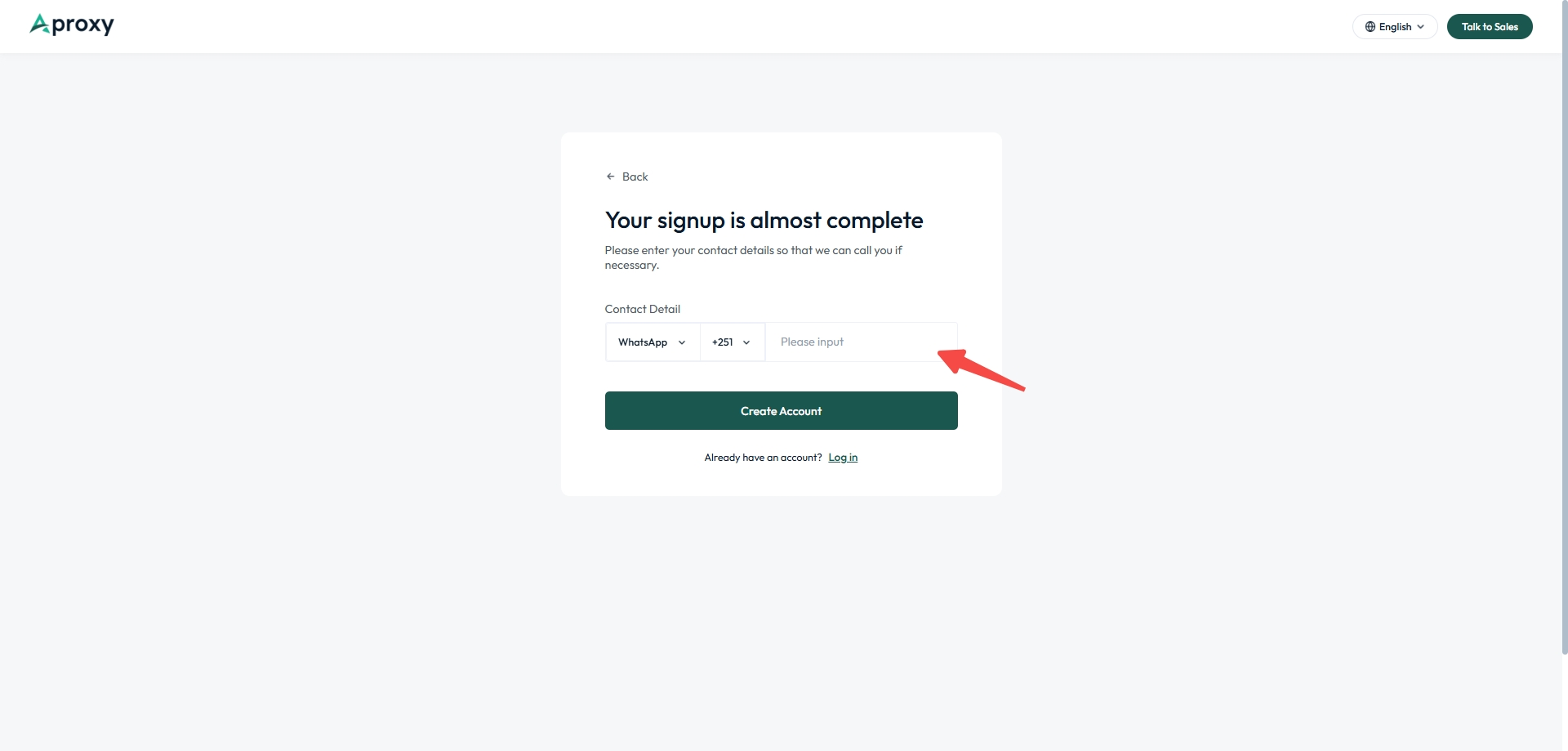
Then enter your contact information and click "Creat Account". The registration is then successful.
The second way: Register with an Email address
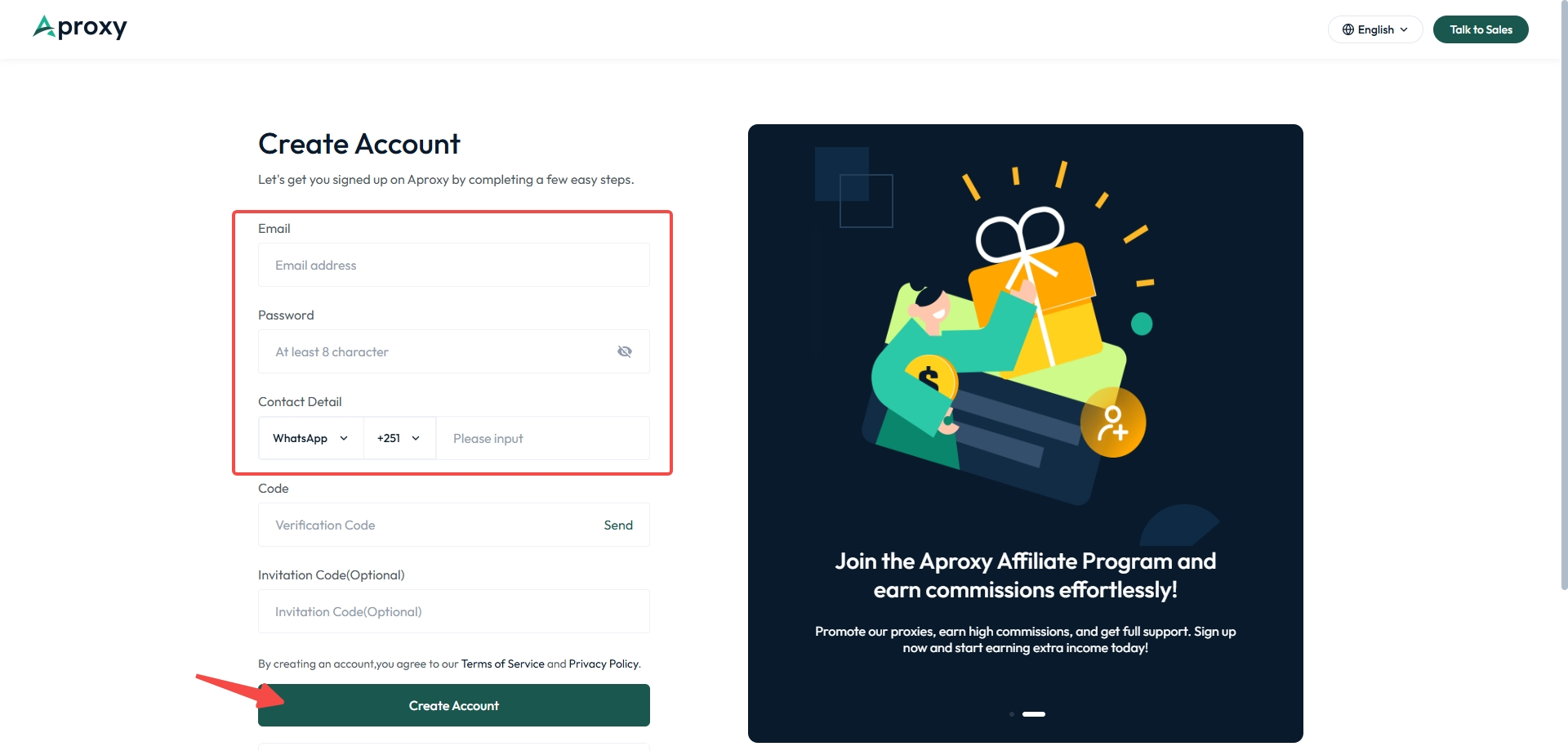
Enter the email address you want to register in the email address box, click "Send" below to get the verification code and fill it in. Then set a password (at least 8 characters), and enter your contact information. If you have an invitation code, you can fill it in the "Invitation Code" box. Finally, click "Create Account" and the registration is successful. When registered, it means that you "agree to the Terms of Service and Privacy Policy".
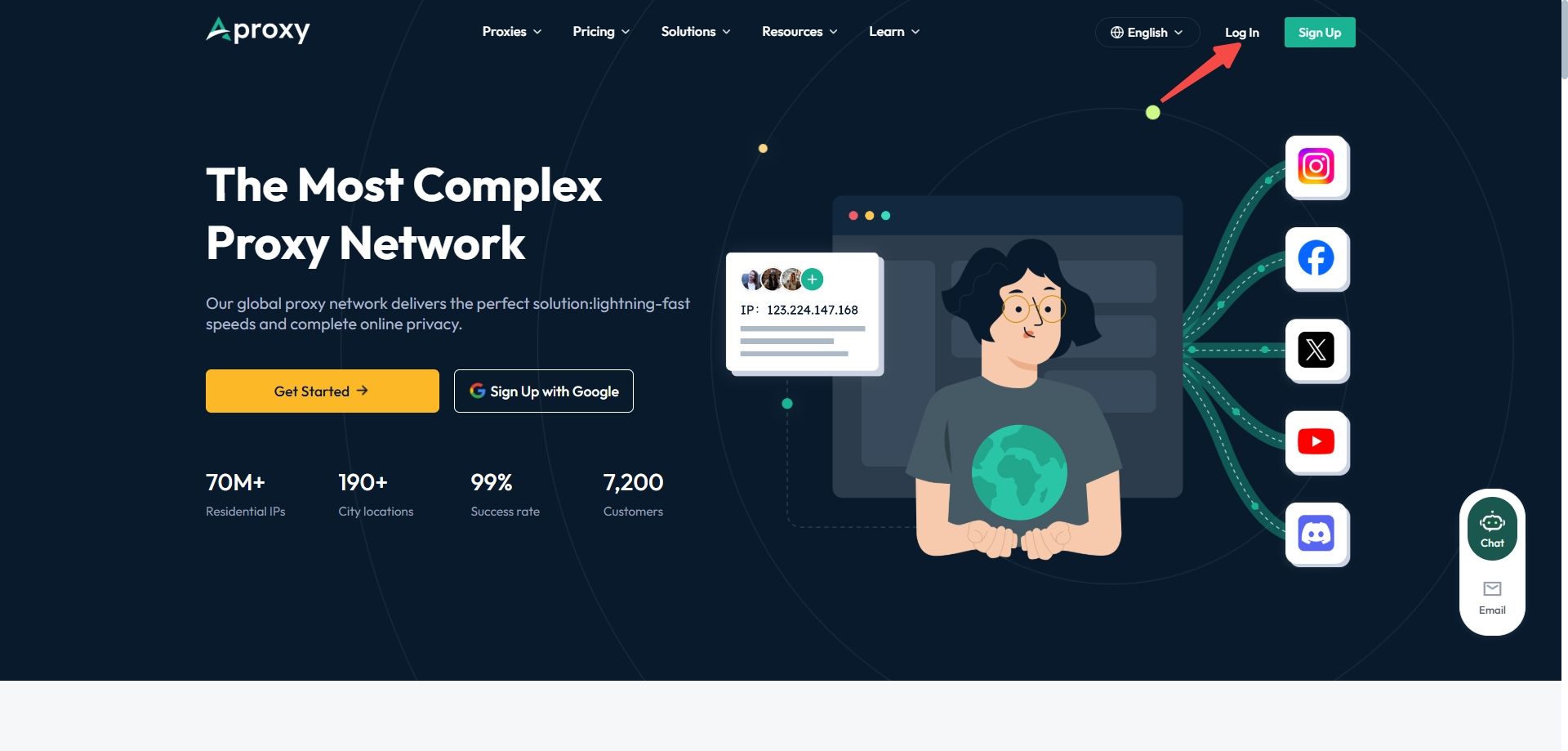
Return to the Aproxy official website, click "Log In" in the upper right corner or click here.
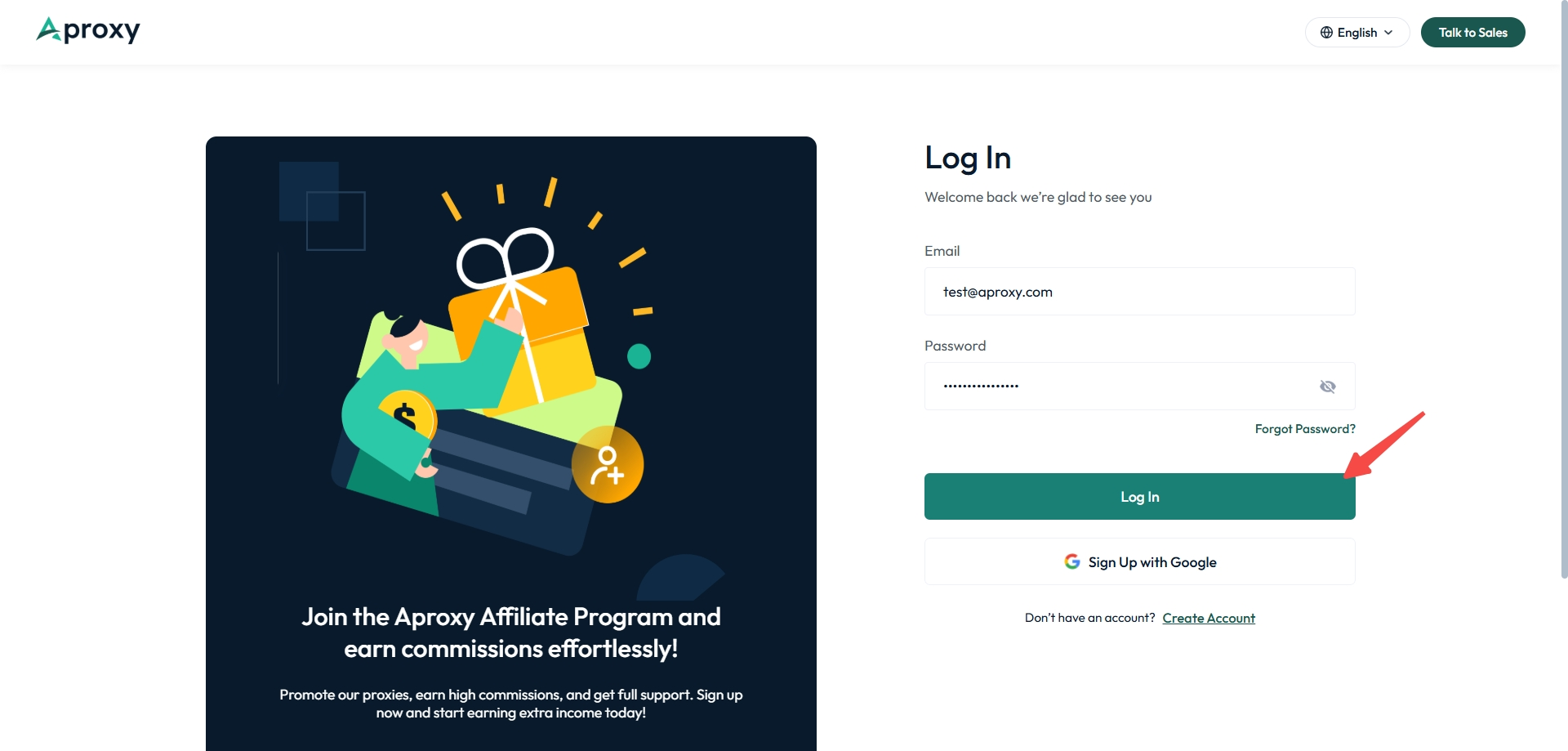
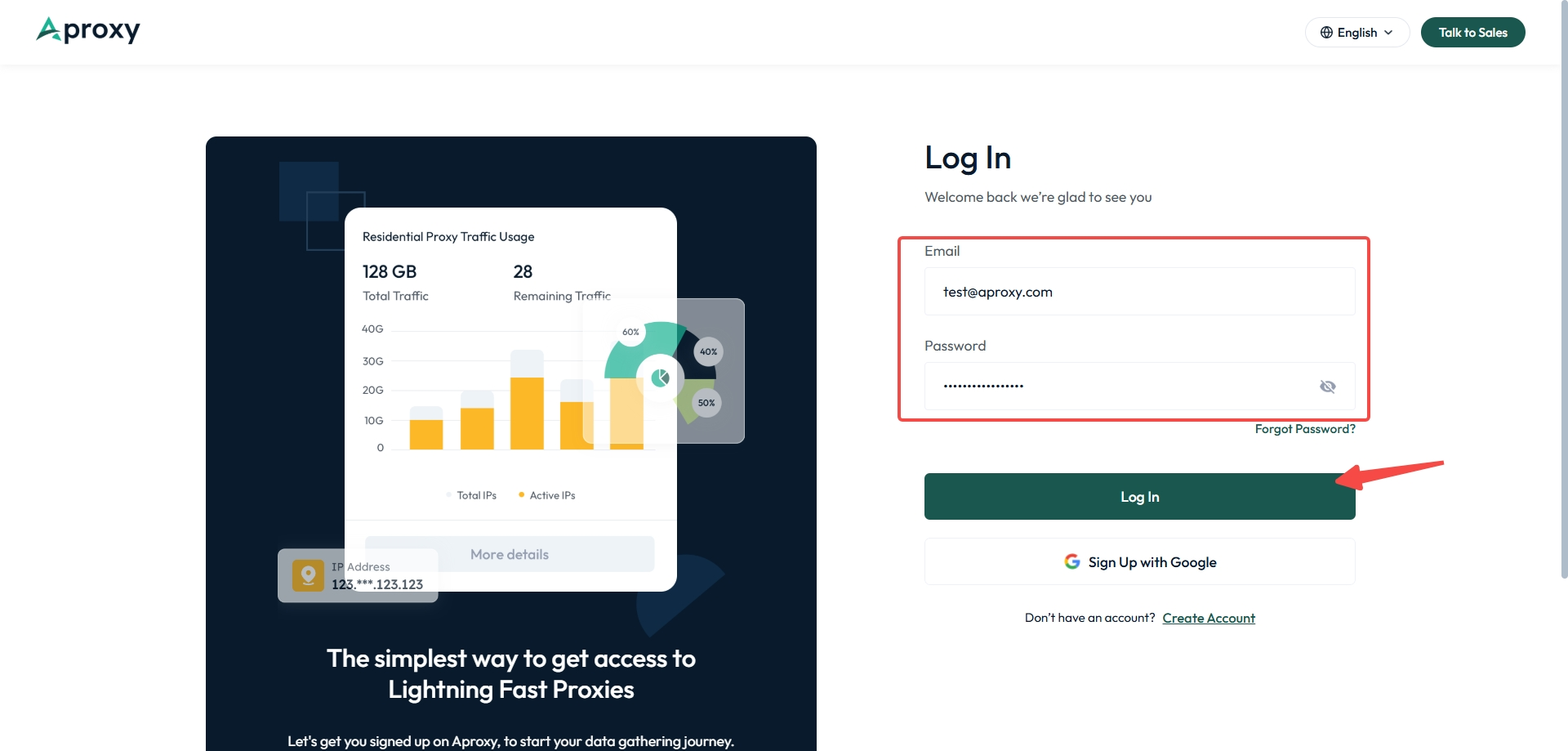
Then click "Sign up with Google" or enter the registered email address and password. Click "Log In" below, and the login is successful.
Password Retrieval Tutorial
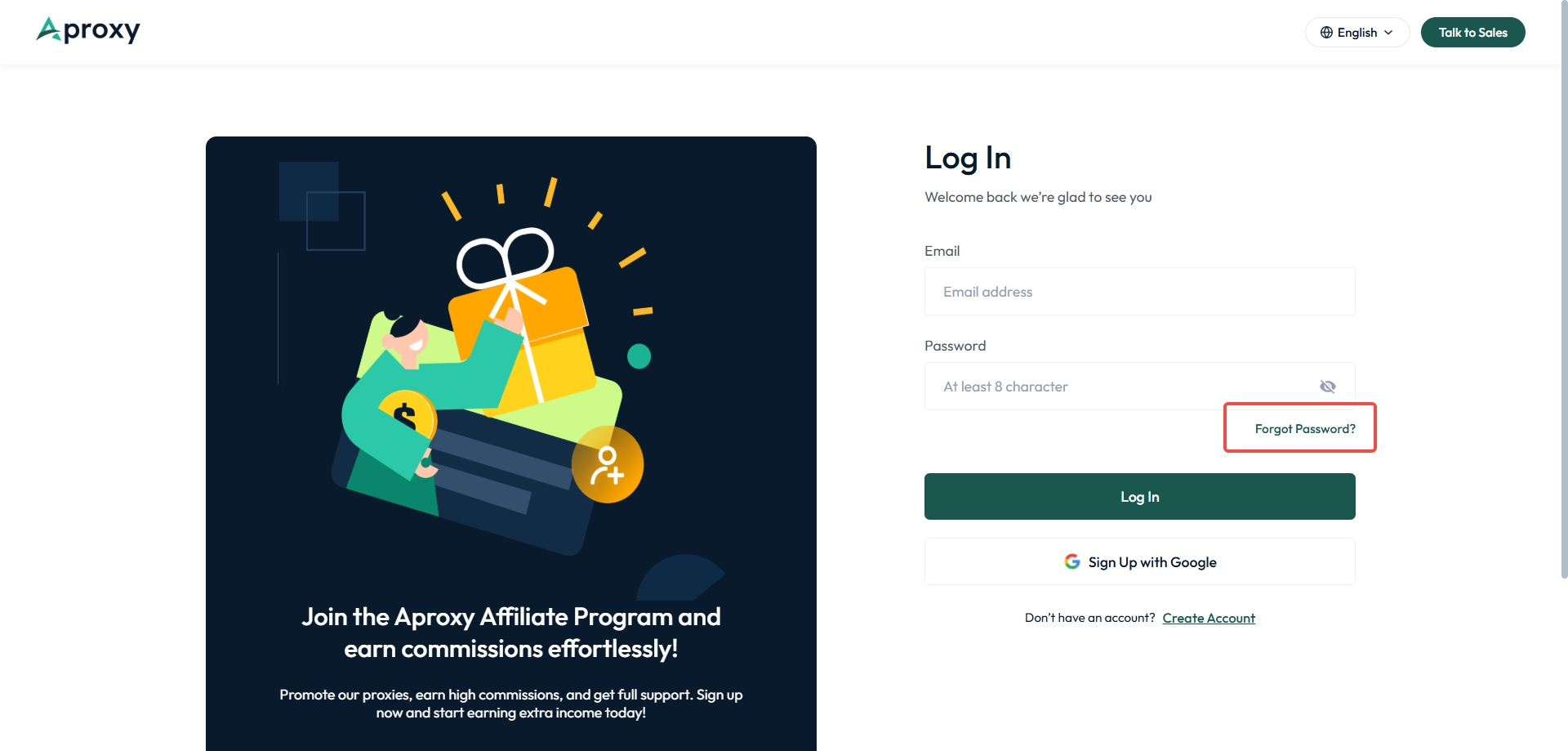
1. First, click to enter the Aproxy official website, click "Log In" in the upper right corner or click here. Then click "Forgot Password?".
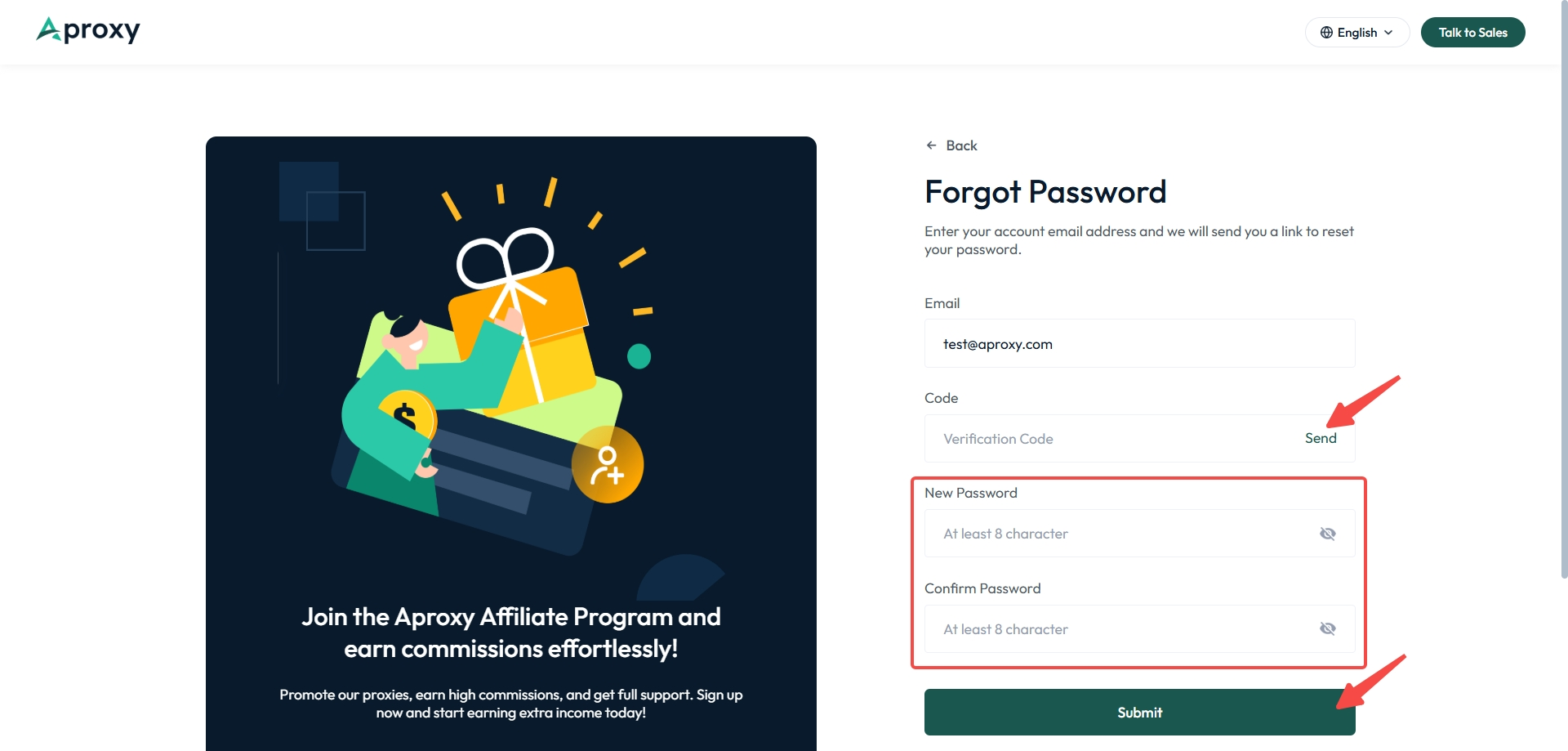
2. Enter the email address for which you need to reset the password, click "Send" below to get the verification code and fill it in the box. Then set a new password (at least 6 characters), and click "Submit" below. The password retrieval is then successful.
3. You will be directly redirected to the login interface. Click "Log In" below.
Password Change Tutorial
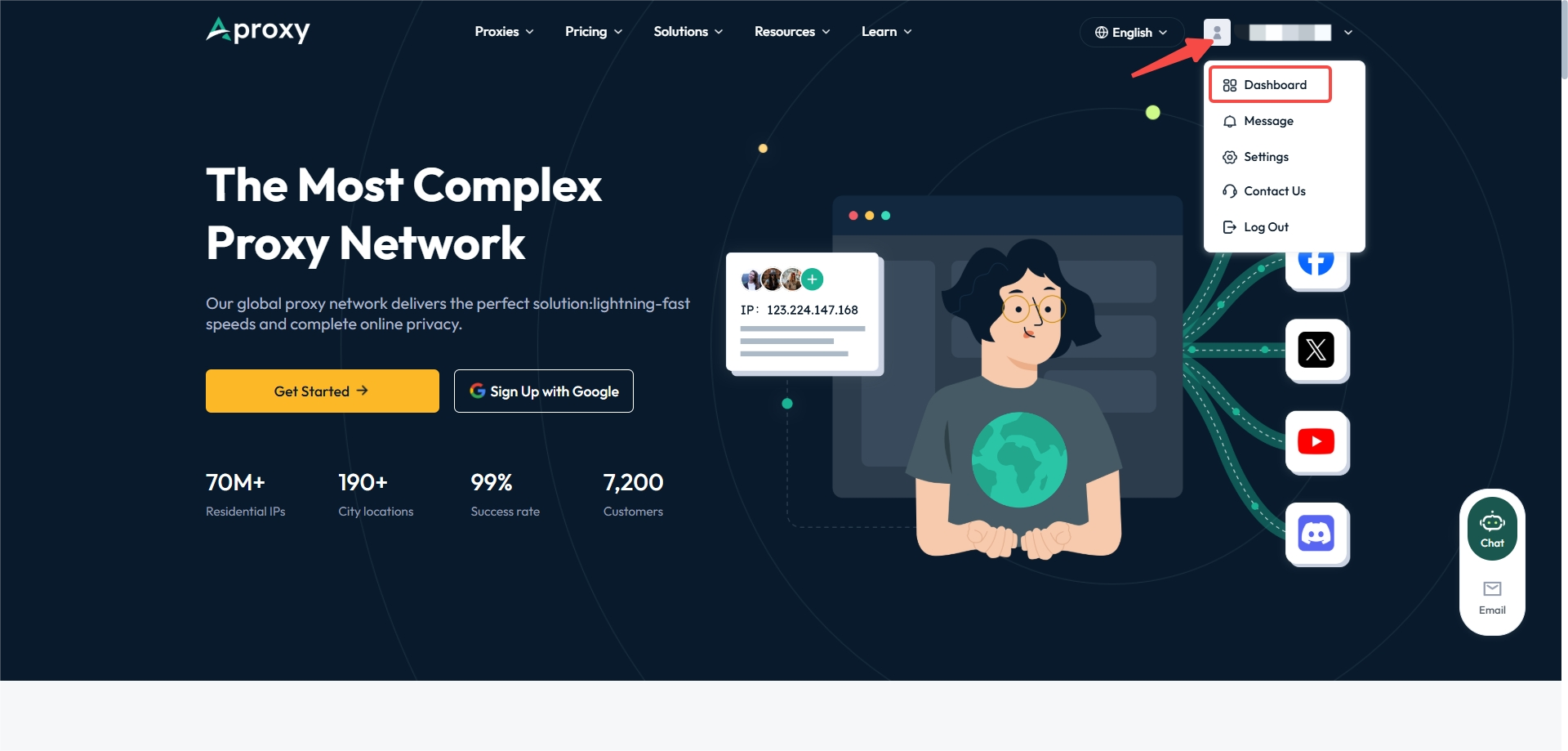
1. After logging in, click on the email address in the upper right corner of the official website, and then click to enter the "Dashboard" interface.
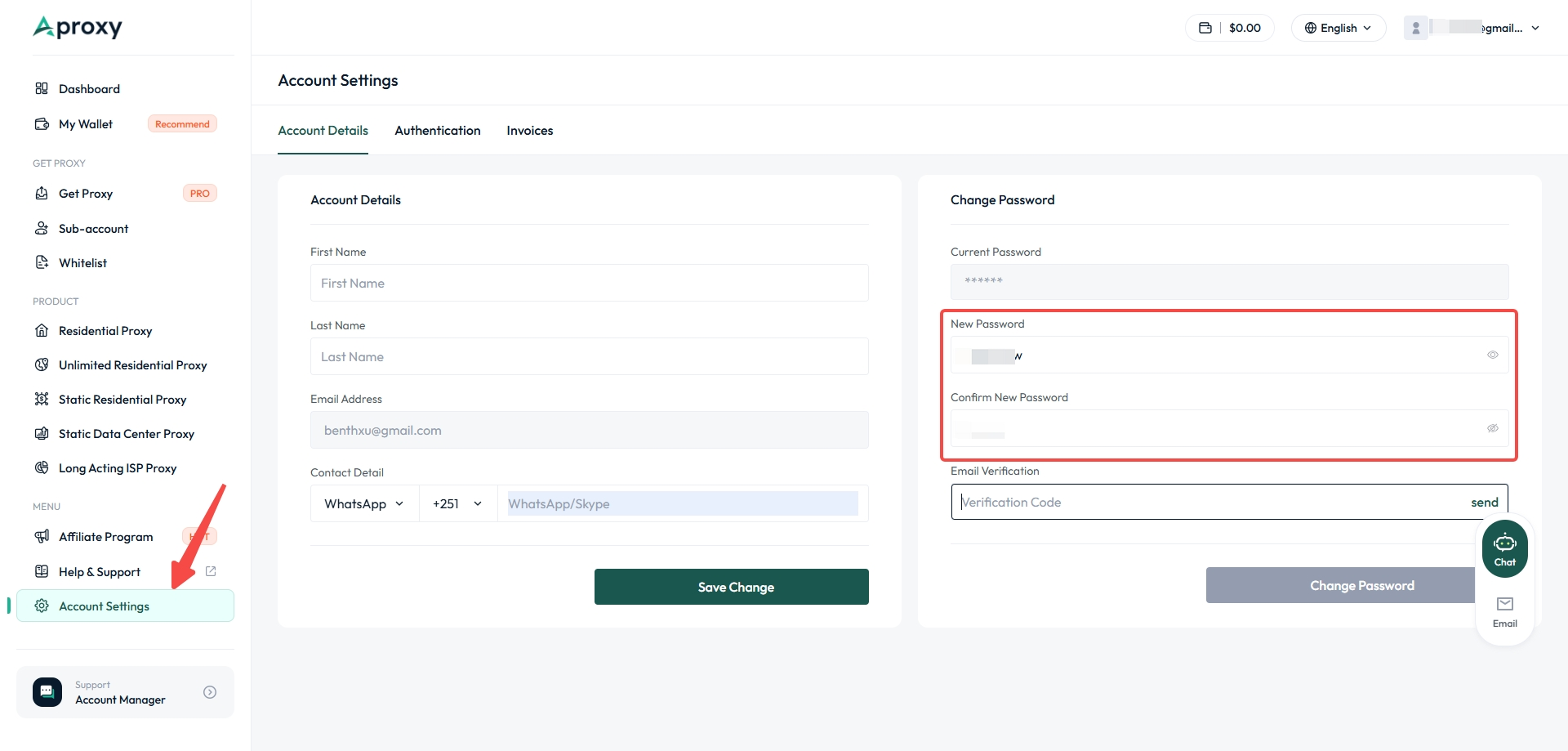
2. Click "Change Password" in the Account Settings.
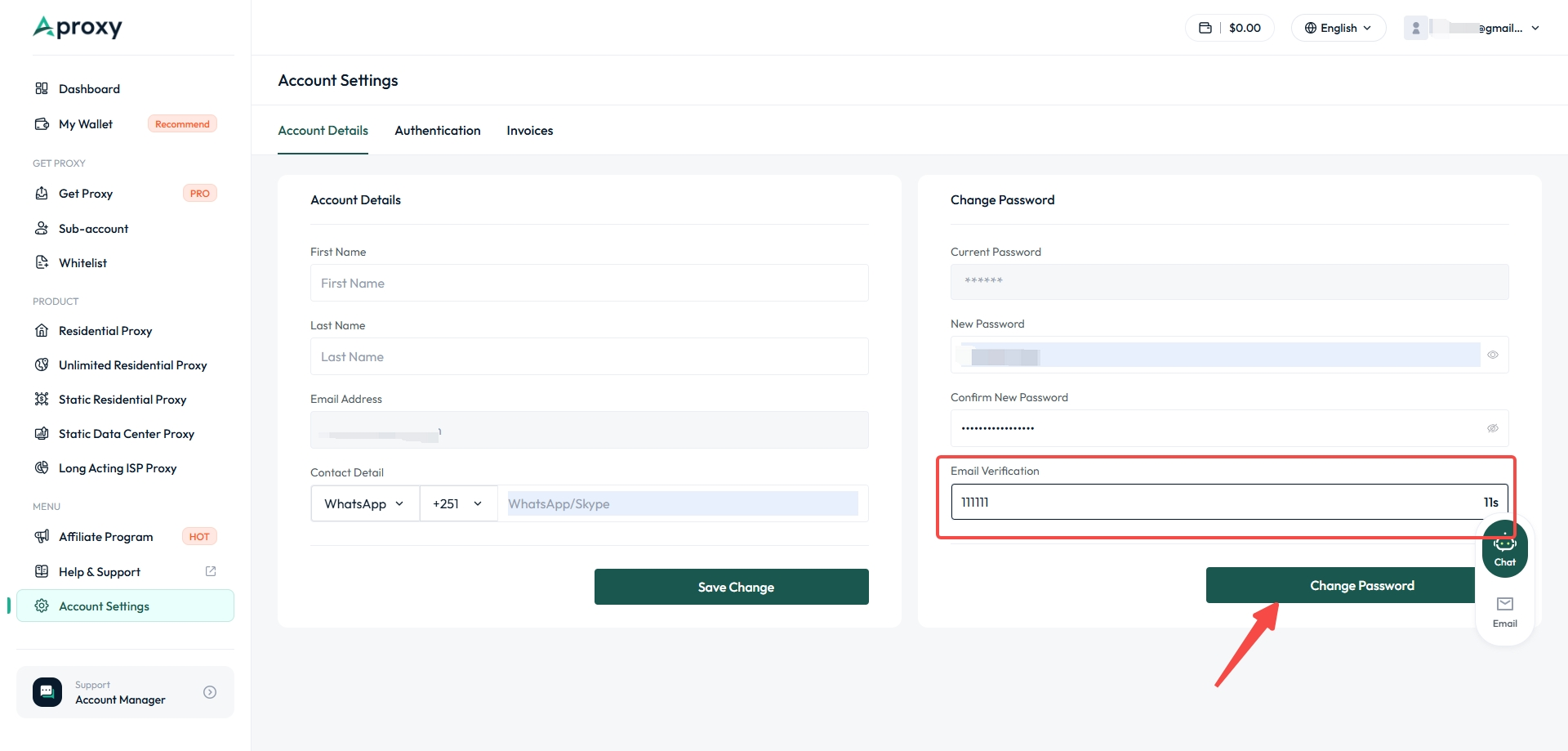
3. Click "Send" in the pop - up window to get the verification code and enter it in the box. Then set a new password and confirm the password (at least 6 characters), and finally click "Change Password". The password change is then successful.
 Updated 1 year ago
 Re-enable Website Notification

 Sản phẩm được chứng nhận ISO/IEC 27001:2017


