
 Ra mắt mạnh mẽ Proxy Cư Trú!70M+ địa chỉ IP nguồn tuân thủ, nâng cao dự án web scraping của bạn với $0.8/GBMua ngay



 Dữ liệu cho AI













 Mặt sau
Windows Proxy Configuration Guide
Before configuring the proxy, please purchase a proxy [Residential Proxy Purchase Tutorial], and extract the IP address [IP Address Extraction Tutorial].
Here, we use an example of setting up and using residential proxy account and password extracted IP on Windows 10.
1. Press the Windows key on your computer and open it.
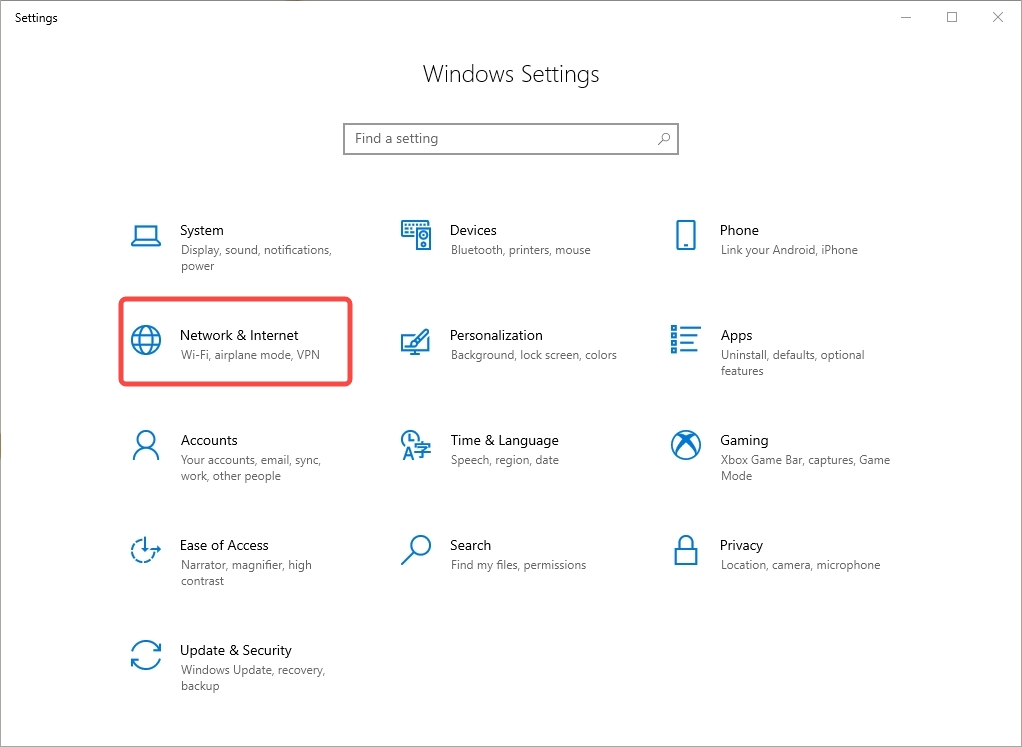
2. Click on “Network & Internet,” then click on “Proxy”.
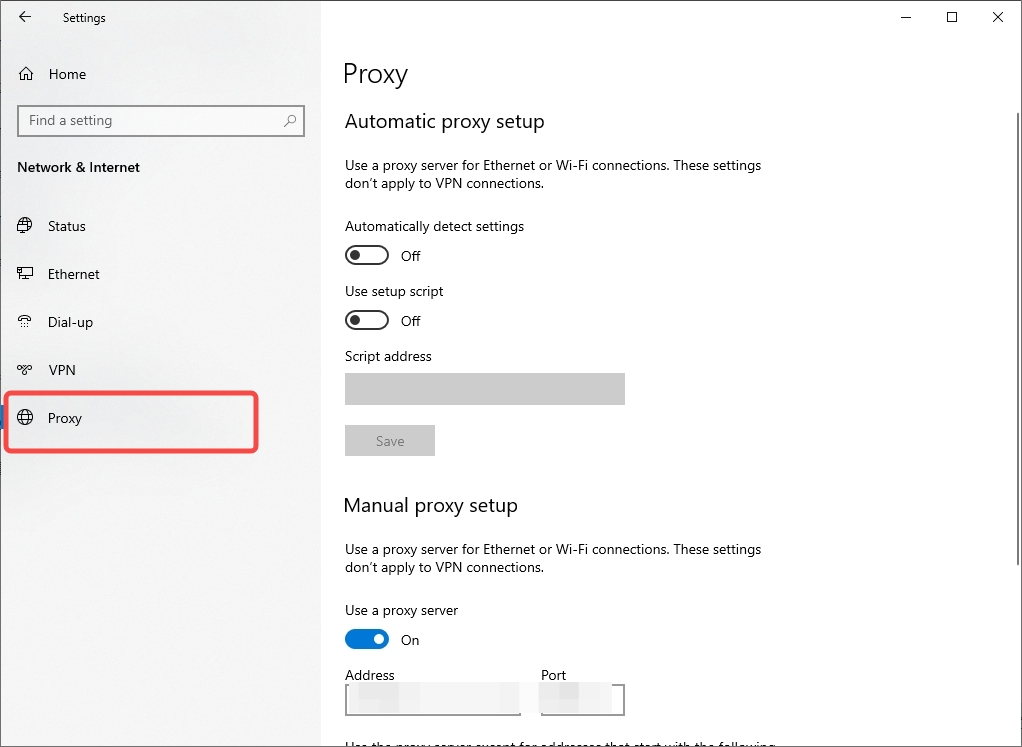
3. Toggle “Use a Proxy Server” to turn it on.
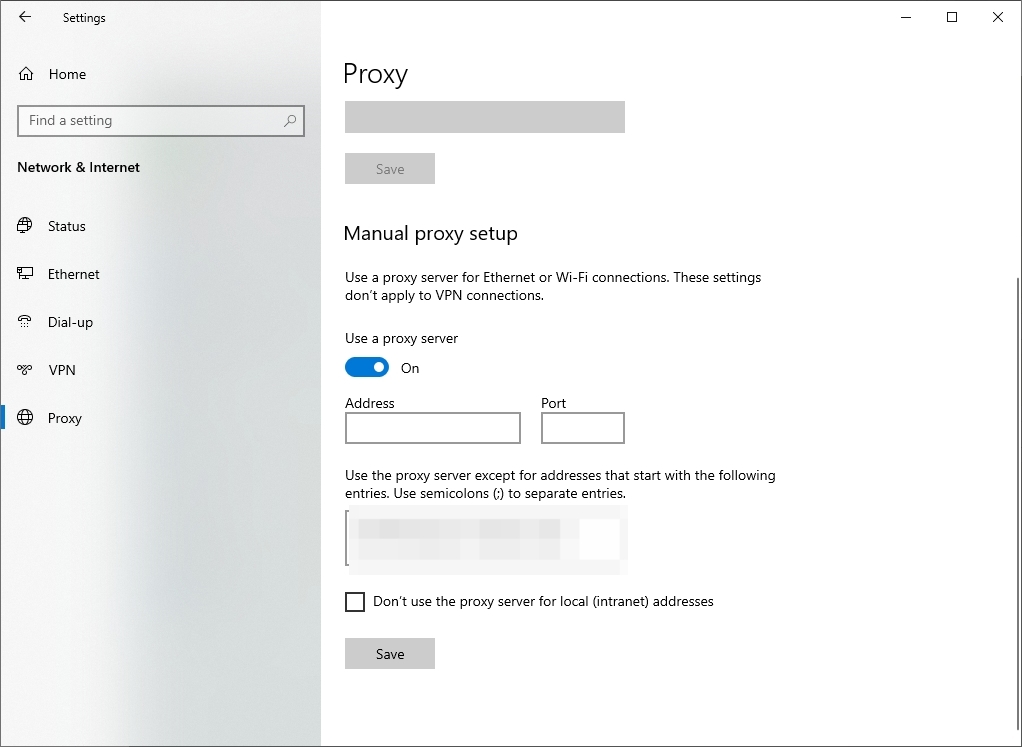
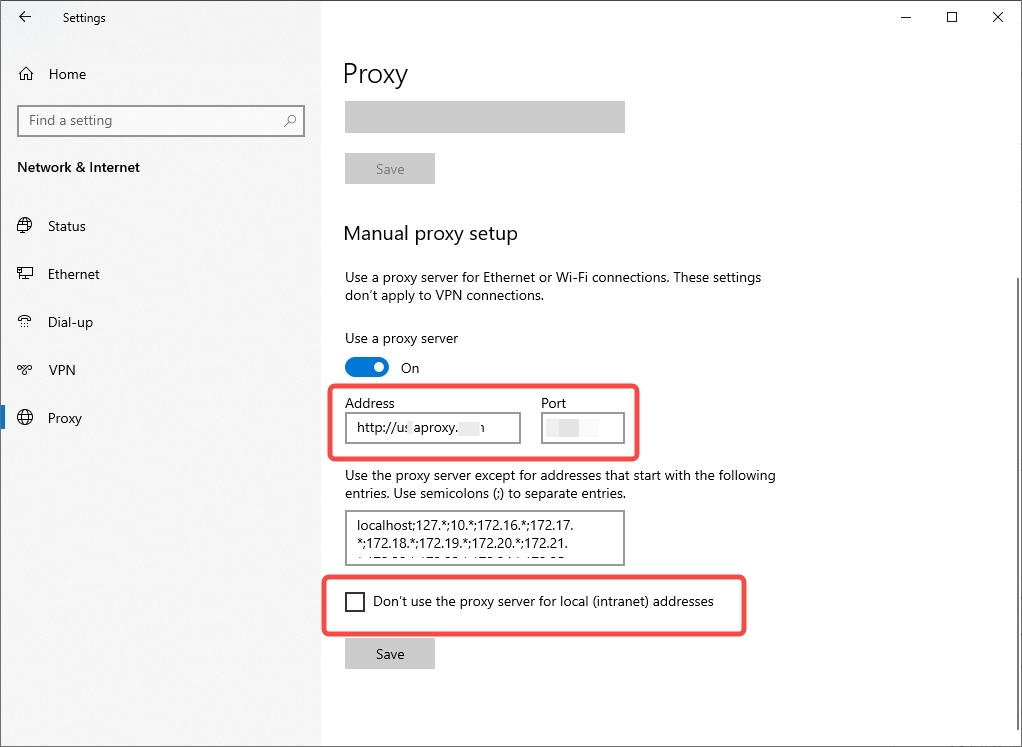
4. Enter the IP address and port number you just copied from the generated proxy. Then click “Save” at the bottom. (Note: The "Do not use the proxy server for local (Intranet) addresses" option is mainly used to ensure the proxy does not interfere with your access to local network resources (such as company intranet or local devices). If you only want to use the proxy for external internet access and not affect your local network connections, it’s recommended to check this option. If you need the proxy to cover all traffic, including local network access, do not check this option.)
5. After successful configuration, open a browser window and visit an IP address detection website. In the pop-up, input the sub-account name and password, then click “OK.”
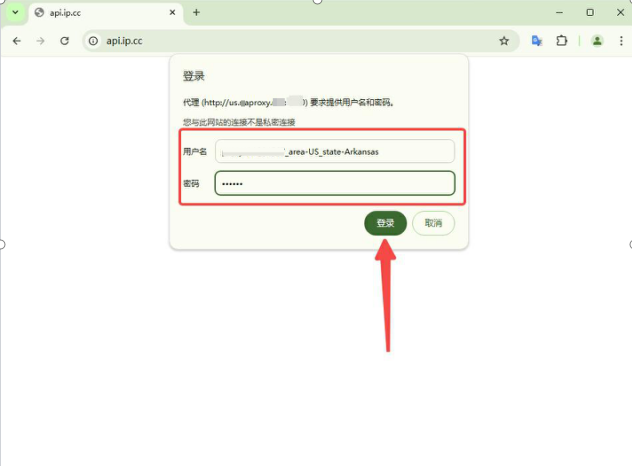
6. Check if the displayed IP address has changed to the proxy server’s IP address. Finally, visit other websites to test the connection, ensuring that the connection is functioning correctly.
 Updated 1 year ago

 Sản phẩm được chứng nhận ISO/IEC 27001:2017


