
 Ra mắt mạnh mẽ Proxy Cư Trú!70M+ địa chỉ IP nguồn tuân thủ, nâng cao dự án web scraping của bạn với $0.8/GBMua ngay



 Dữ liệu cho AI













 Mặt sau
VMLogin Browser Proxy Configuration Guide
Before configuring the proxy, ensure you have purchased proxies [Residential Proxy Purchase Guide] and extracted the IP addresses [Proxy Extraction Guide].
Here, we use residential proxies with username-password extraction as an example.
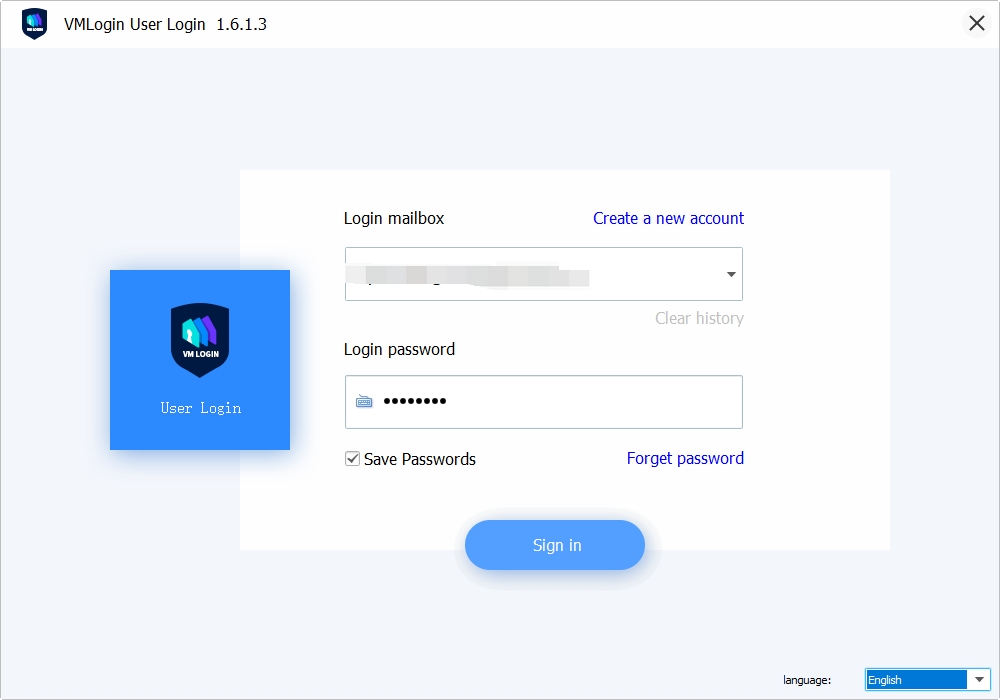
1.Click here to Download and install the VMLogin fingerprint browser, visit the official website, register, and log in to the software.
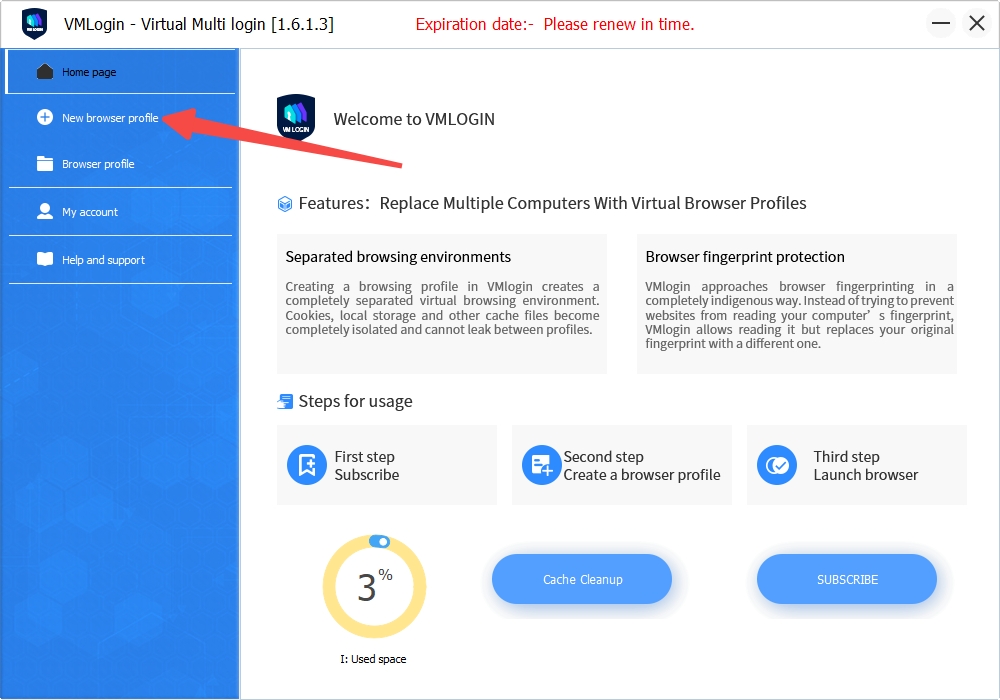
2.Click "New browser profile" to create a new browser configuration.
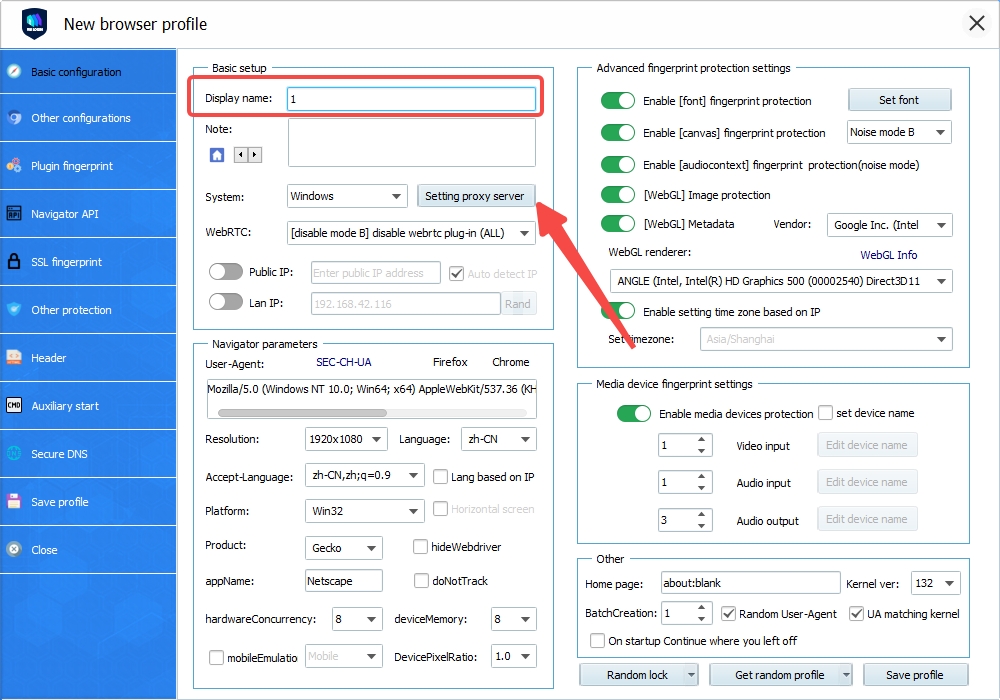
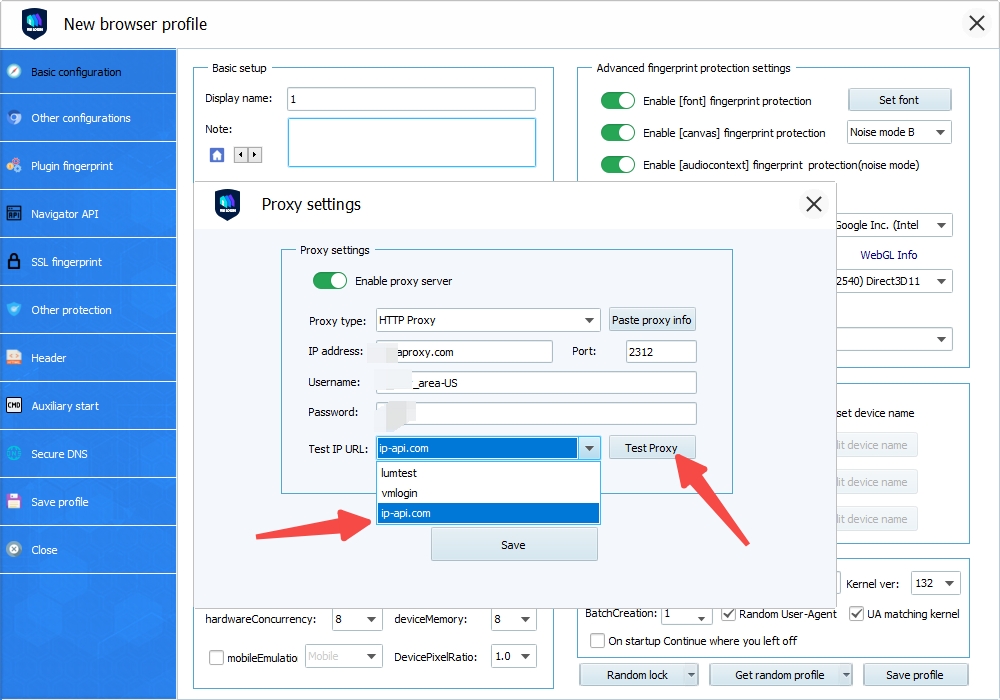
3.Enter a "Display name" and click "Setting proxy server."
4.Check "Enable proxy server," select "HTTP Proxy" as the proxy type, and paste the copied IP address and port into the "IP Address" box.
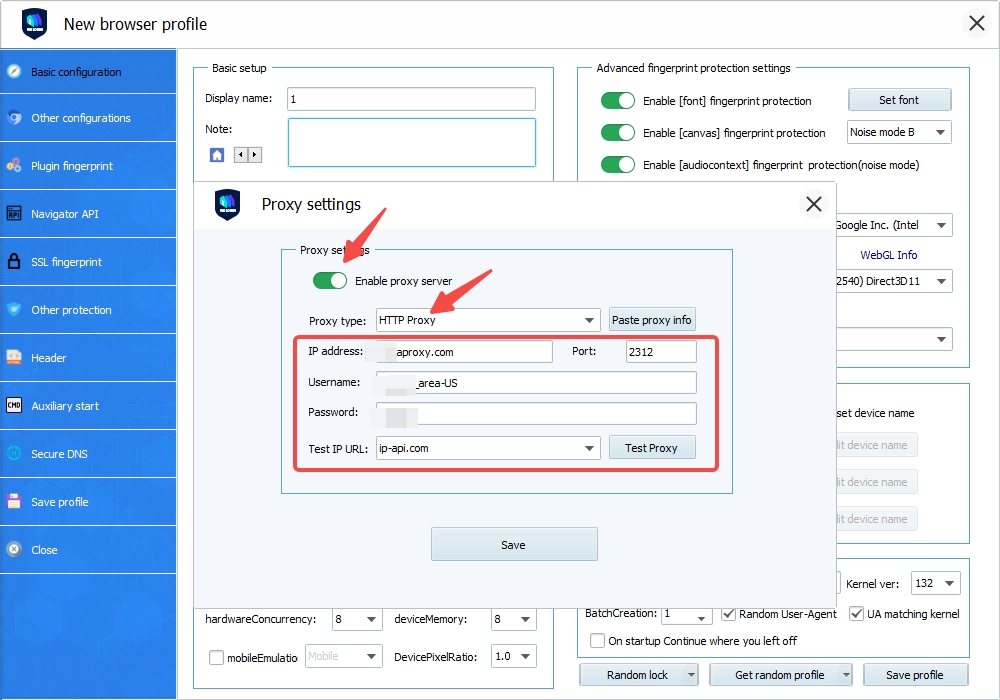
5.After pasting, select "ip-api.com" as the test website and click "Test Proxy."
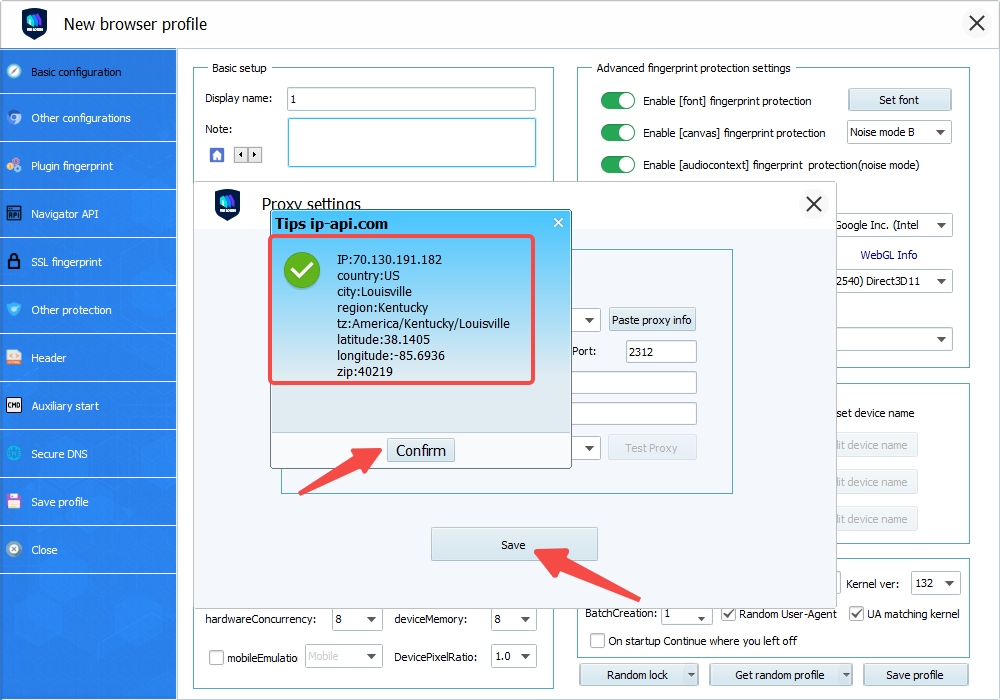
6.If the test result shows the proxy server's IP address, the configuration is successful. Click "Confirm", then Save Settings.
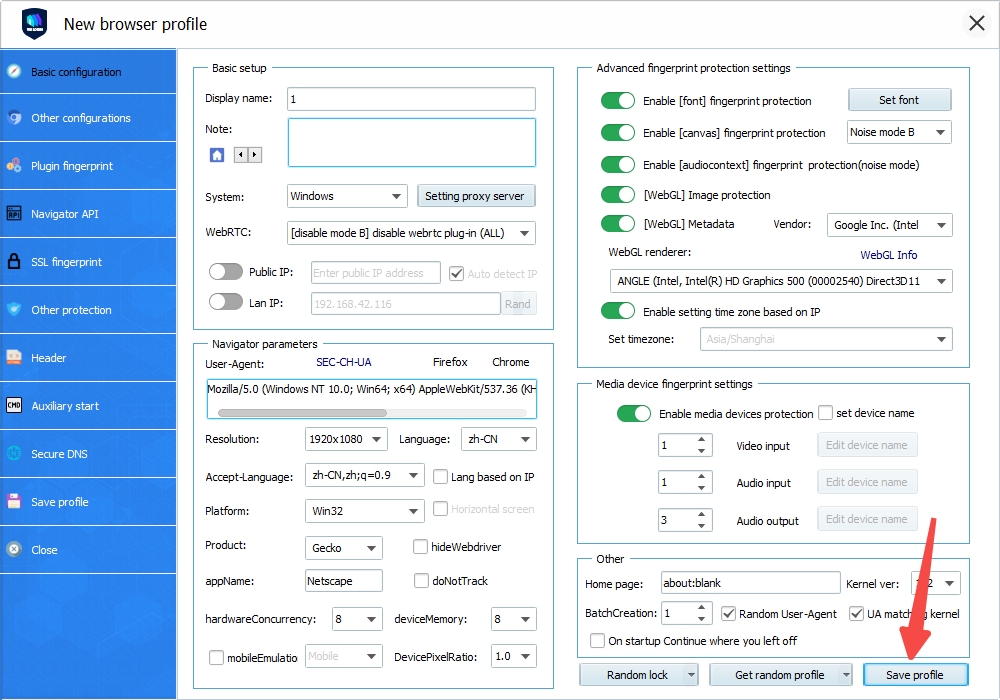
7.Click "Save profile" at the bottom to finalize the configuration.
8.Open the configured fingerprint browser and visit an IP address detection site to confirm the displayed IP matches the proxy server's IP.
 Updated 1 year ago
 AdsPower Browser Setting
 Sản phẩm được chứng nhận ISO/IEC 27001:2017


